How to protect Windows 10 and 11 PCs from ransomware
CryptoLocker. WannaCry. DarkSide. Conti. MedusaLocker. Qilin. The ransomware threat has exploded over the past decade, and it isn’t going away anytime soon; the news brings constant reports of new waves of this pernicious type of malware washing across the world.
Ransomware gained in popularity in large part because of the immediate financial payoff for attackers: It works by encrypting the files on your hard disk, then demanding that you pay a ransom, frequently in Bitcoin or other cryptocurrency, to decrypt them. Now many ransomware gangs are switching tactics, stealthily infiltrating enterprise systems, collecting sensitive corporate data over time, and later threatening to expose that data if the organization doesn’t pay up.
Nevertheless, individuals and businesses are still at risk from traditional ransomware attacks. In this article, I’ll show you how to keep yourself safe in Windows 11 — and Windows 10 too, for those who haven’t yet moved to Windows 11 — including how to use an anti-ransomware tool built into both versions of Windows.
(Administrators, see “What IT needs to know about ransomware and Windows” at the end of this article.)
This article assumes that you’re already taking the basic precautions against malware in general, including running anti-malware software and never downloading attachments or clicking links in email from unknown senders and suspicious-looking email. Also note that this article has been updated for Windows 11 25H2 and Windows 10 22H2. If you have an earlier Windows release, some things may be different.
Use controlled folder access
Microsoft is concerned enough about ransomware that it built an easy-to-configure anti-ransomware tool directly into Windows 10 and 11. Called controlled folder access, it protects you by letting only safe and fully vetted applications access your files. Unknown applications or known malware threats aren’t allowed through.
By default, the feature is not turned on, so if you want to protect yourself against ransomware, you’ll have to tell it to get to work. And you can customize exactly how it works by adding new applications to its whitelist of programs that can access files, and adding new folders in addition to the ones that it protects by default.
To switch it on, you’ll need to access Windows Security. To get to it in Windows 11, click Start > Settings to open the Settings app, then select Privacy & Security > Windows Security.
In Windows 10, click Start > Settings to open the Settings app, then select Update & Security > Windows Security.
In Windows Security, select Virus & threat protection. On the screen that appears, scroll down to the “Ransomware protection” section and click Manage ransomware protection. On the next screen, under “Controlled folder access,” toggle the switch to On. You’ll get a prompt asking if you want to make the change. Click Yes.
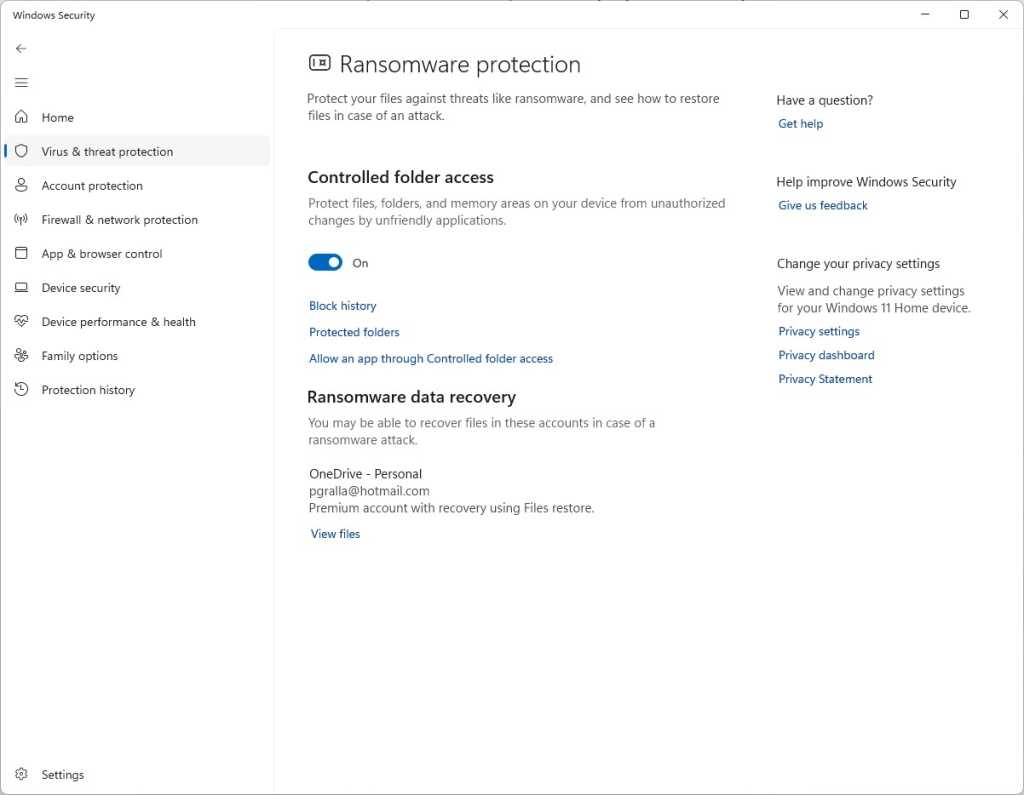
Switch the toggle to On to turn on controlled folder access.
Preston Gralla / Foundry
You shouldn’t leave it at that and feel safe yet, because there’s a chance that you have folders you’d like to protect that the feature ignores. By default, it protects Windows system folders (and folders underneath them) like C:\Users\UserName\Documents, where UserName is your Windows user name. In addition to Documents, Windows system folders include Desktop, Music, Pictures, and Videos.
But all your other folders are fair game for any ransomware that makes its way onto your PC.
To add folders you want protected, click the Protected folders link that appears after you switch on controlled folder access. A prompt appears asking if you want to make the change. Click Yes. Click the Add a protected folder button that is on top of the list of protected folders that appears, then navigate from the screen that appears to the folder you want to protect and click Select Folder.
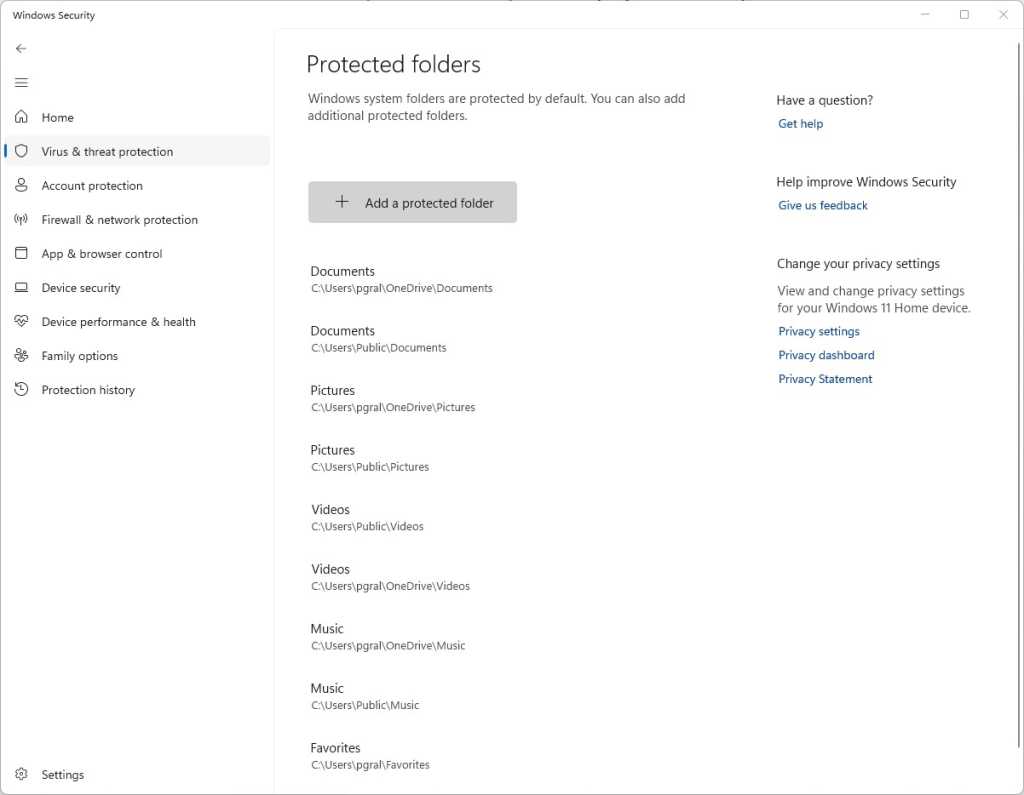
Click Add a protected folder to protect more of your folders with controlled folder access.
Preston Gralla / Foundry
Continue to add folders in this way. Remember that when you add a folder, all folders underneath it are protected as well.
If you decide at any point to remove a folder, get back to the “Protected folders” screen, click the folder you want to remove, and then click Remove. Note that you won’t be able to remove any of the Windows system folders that are protected when you turn the feature on. You can only remove the ones that you’ve added.
Microsoft determines which applications should be allowed access to protected folders, and unsurprisingly, among them are its own Microsoft Office apps. Microsoft hasn’t published a list of which apps are allowed, though, so consider taking action to let apps you trust access your files.
To do it, go back to the screen where you turned on controlled folder access and click Allow an app through Controlled folder access. A prompt appears asking if you want to make the change. Click Yes. From the screen that appears, click Add an allowed app, navigate to the executable file of the program you want to add, click Open, and then confirm you want to add the file. As with adding folders to the list of protected folders, you can remove the app by getting back to this screen, clicking the application you want to remove, then clicking Remove.
Hint: If you’re not sure where executable files are located for programs you want to add to the allow list, look for the folder name with the program’s name in the “WindowsProgram Files” or “WindowsProgram Files (x86)” folders, then look for an executable file in that folder.
Note: In Windows 11, OneDrive folders are automatically protected by controlled folder access when you turn it on. However, they may not necessarily be protected in Windows 10. In Windows 10, on the “Ransomware protection” page, you’ll be notified in the Ransomware data recovery section whether your OneDrive files are protected. If they’re not protected, click the Set up OneDrive button there.
Back up… but do it properly
The whole point of ransomware is to hold your files hostage until you pay to unlock them. So one of the best protections from ransomware is to back up your files. That way, there’s no need to pay the ransom, because you can easily restore your files from the backup.
It’s a good idea to not just back up to a local drive but additionally use a reputable cloud-based storage and backup service. If you back up to a drive attached to your PC, when your PC gets infected with ransomware, the backup drive will likely be encrypted along with any other disks inside or attached to your PC. Cloud backups are generally less vulnerable but not wholly immune to ransomware attacks.
Make sure that your backup service uses versioning — that is, it keeps not just the current version of each of your files, but previous ones as well. That way, if the most current version of your files gets infected, you can restore from previous versions. Most popular backup and storage services, including Microsoft OneDrive, Google Drive, Carbonite, Dropbox, and many others, use versioning. It’s a good idea to get familiar with the versioning feature of whichever service you use now, so you can easily restore files in a pinch.
Some services, including OneDrive and Google Drive, now offer ransomware detection. Users are notified of suspicious activity and can use the vendors’ tools to remove infected files and restore older versions.
Stay patched
Microsoft regularly releases Windows 10 and Windows 11 security patches, and they’re automatically applied via Windows Update. But if you hear about a ransomware outbreak, you shouldn’t wait for Windows Update to work — you should immediately get the update yourself so that you’re protected as soon as possible. And it’s not just Windows updates you want to get. You also want to make sure Windows Security, Microsoft’s built-in anti-malware tool, has the latest anti-malware definitions.
To do both in Windows 10, go to Settings > Update & Security > Windows Update and click the Check for updates button. In Windows 11, go to Settings > Windows Update and click the Check for updates button. (If updates are already waiting for you, you’ll see them listed instead of the Check for updates button.) If Windows finds updates, it installs them. If it requires a reboot, it will tell you.
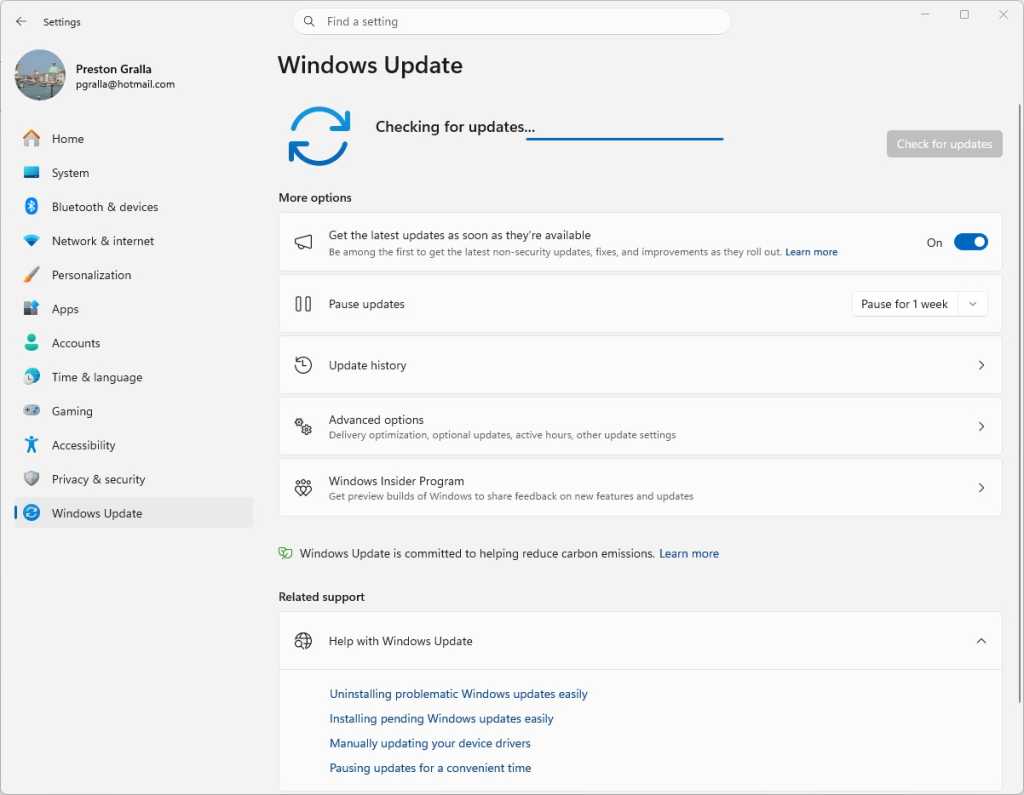
Checking for Windows 11 updates.
Preston Gralla / Foundry
You need to worry not just about Windows staying patched, but other software as well. If you use an anti-malware program other than Windows Security, make sure it and its malware definitions are up to date.
And the other software on your PC should be kept up to date as well. So check how each piece of software gets updated and make sure to update each one regularly. For help keeping all your apps up to date, consider setting up an automated tool like Patch My PC Updater or Software Update Monitor (see our tutorial “How to keep your apps up to date in Windows 10 and 11”) — or, if you’re comfortable using the command line, try the WinGet command (see “WinGet: The best way to keep Windows apps updated”).
Disable macros in Microsoft Office
Ransomware can be spread via macros in Office files, so to be safe you should turn them off. Microsoft now disables macros from the internet by default, but that doesn’t necessarily mean that they’re turned off in your version of Office, depending on when you installed it and whether you’ve updated it.
To turn them off, when you’re in an Office application, select File > Options > Trust Center > Trust Center Settings and select either Disable all macros with notification or Disable all macros without notification. If you disable them with notification, when you open the file you’ll get a message warning that the macros were disabled and letting you turn them on. Only turn them on if you’re absolutely sure they’re from a safe, trusted source.
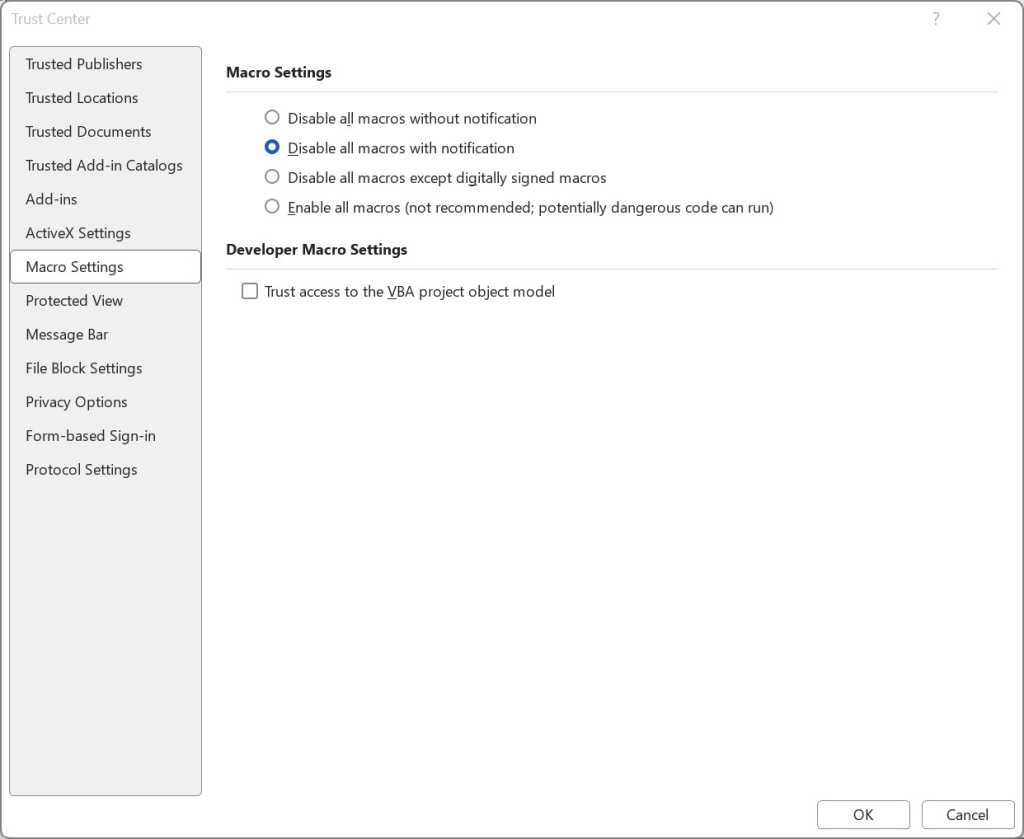
Here’s how to disable macros in Office.
Preston Gralla / Foundry
Get ransomware protection and/or mitigation tools
Just about any anti-malware program includes built-in anti-ransomware protections, but there are several programs that promise to specifically target ransomware. Most are paid, but there are also some free options.
Bitdefender offers free decryption tools that can unlock your data if you’ve been attacked by ransomware and it’s being held ransom. They can only decrypt data that’s been encrypted with certain specific pieces or families of ransomware, including REvil/Sodinokibi, DarkSide, MaMoCrypt, WannaRen, and several others. Avast offers its own set of free decryption tools.
What IT needs to know about ransomware and Windows
Many Microsoft 365 and Windows commercial plans, especially at the enterprise level, include ransomware detection and protection tools. Advanced products such as Microsoft Defender XDR are also available under separate licenses.
Even without those tools, there’s plenty that admins can do to protect Windows systems from ransomware. The most obvious: Apply the latest security patches to not just all PCs in an organization, but all servers and any other enterprise-level hardware. Also lock down application permissions, train users to spot phishing attempts, and, of course, securely back up all corporate data.
IT also needs to make sure the notoriously insecure SMB1 Windows networking protocol is disabled in all devices. Multiple ransomware attacks have spread through the 30-year-old protocol; even Microsoft says it should be used by no one, ever.
The good news is that Windows 10 version 1709, released in October 2017, finally did away with SMB1. (It’s not in Windows 11, either.) But that’s only for PCs with clean installs of version 1709 or later. Older PCs that were updated from earlier versions of Windows still have the protocol built in.
The Microsoft support article “Detect, enable and disable SMBv1, SMBv2, and SMBv3 in Windows” offers details about how to turn off the protocol. It recommends killing SMB1 but keeping SMB2 and SMB3 active, and only deactivating them for temporary troubleshooting.
Administrators can use the controlled folder access feature (covered earlier in this article) to stop ransomware from encrypting files and folders of PCs running Windows 11 or Windows 10 version 1709 or later. They can use the Group Policy Management Console, the Windows Security Center, or PowerShell to turn on controlled folder access for users on a network, customize which folders should be protected, and let additional applications access the folders beyond the Microsoft defaults, as detailed in the Microsoft articles “Enable controlled folder access” and “Customize controlled folder access.”
One potential issue with controlled folder access is that it might block apps that users typically use from accessing folders. So Microsoft recommends using audit mode first, to see what will happen when controlled folder access is turned on. For information about how to do it, go to Microsoft’s “Evaluate exploit protection” documentation.
As noted above, Office macros can spread ransomware. Microsoft is now blocking macros downloaded from the internet by default, but to be safe, IT should use Group Policy to block them. For advice on how to do it, go to the “Block macros from running in Office files from the Internet” section on Microsoft’s “Macros from the internet will be blocked by default in Office” documentation.
This article was originally published in January 2018 and most recently updated in May 2026.
Read more: How to protect Windows 10 and 11 PCs from ransomware