How to navigate the Windows Insider Program
Are you a Windows fan? Do you like getting sneak peeks at features before they’re released to the public? Microsoft created its Windows Insider Program for you.
The program made its debut in October 2014 with the release of the Windows 10 technical preview. It provided a way for enthusiastic users, developers, and IT admins to test out — and, notably, give feedback on — the upcoming OS. After Windows 10 shipped, Microsoft kept the program going, and Insiders have had early access to new features being developed for all subsequent Windows 10 and Windows 11 versions, via releases known as Insider Preview Builds.
The Insider program has gone through numerous changes since those early days, with an increasingly complex array of options (“channels”) to designate what types of preview builds you want to get your hands on. But the purpose has remained the same: to give you a way to see upcoming features (or ones that Microsoft is experimenting with, anyway), and to report bugs, share your thoughts, and make suggestions for how to improve those features while they’re still being developed.
Earlier this year, the company gave the Insider program its biggest overhaul ever, with the stated goal of making it less confusing for participants. (Did they succeed? We’re not so sure.) So even if you think you know about Insider channels and how to handle them, if you haven’t checked recently, you’re out of date.
We’re here to help. In this article, we’ll explain how to handle Windows 11 previews and how to choose the right Insider channel(s) for you. (Note that you must be running Windows 11 to participate in the Insider program; there is no longer an Insider program for Windows 10.)
We’ve divided the piece into two sections, one for individuals and one for IT admins. So hunker down and get ready to master the ins and outs of Windows previews.
Individuals: From joining the program to testing new features
A word of warning: Before you join Insider, think long and hard about it — and about where you can safely install preview software. Preview builds can be buggy and can harm your system. The features they introduce may not work properly, or may not work at all. The overall operating system itself could become unstable, as could any applications running under it. Windows may freeze or crash.
So it’s best not to install Insider preview builds on your primary PC. You’d be safer using a second or third PC, or even running Windows 11 as a virtual machine and updating it there.
That being said, here’s how to enroll if you want to go ahead.
Join the Windows Insider Program
First, go to the Windows Insider Program page and sign up by clicking the Join Windows Insider button, then clicking Register now on the page that appears. It’s free to participate. (To join, you must have a Microsoft account.) Once you do that and follow the instructions, you’re part of the Windows Insider Program.
Configure your PC and choose a channel
But signing up is only the first step in the process. That just registers you. Next you’ll need to individually configure each PC on which you want to get Insider builds. That way, you can get the builds on some of your PCs but not others. You can even configure different PCs to get updates on different “channels” than others. (More on channels in a moment.)
To configure a PC to receive Insider updates, open its Settings app, choose Windows Insider Program > Get started, and follow the instructions. (When you click the button, you may get a message saying you need to link your Microsoft account to the Windows Insider program. Follow the simple instructions to do it.)
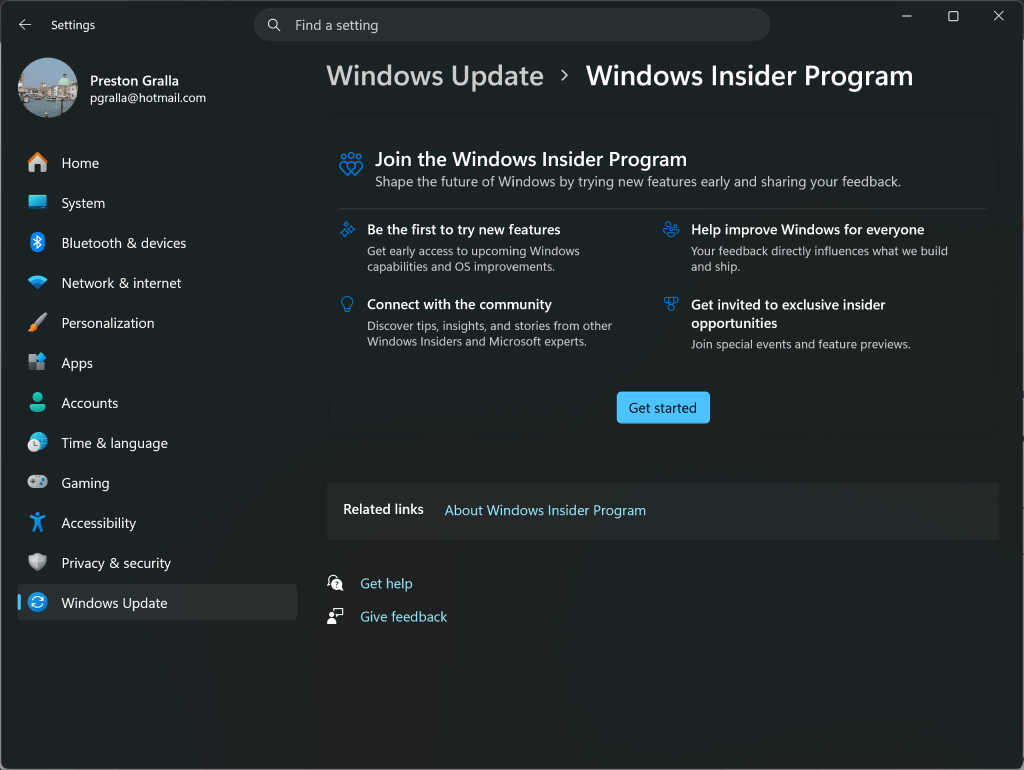
Getting ready to receive Insider updates.
Preston Gralla / Foundry
Note: Microsoft requires that you allow your PC to send specific diagnostic data to Microsoft if you want to test Insider builds. To do it, go to Settings > Privacy & security > Diagnostics & feedback. Then in the “Send optional diagnostic data” section, move the slider from Off to On.
When you’ve done that, go back to Settings > Windows Update > Windows Insider Program and you’ll have several choices to make. First, choose which Insider channel you want to use. There are three of them:
- Experimental channel: Here’s where Microsoft first releases new features and ideas, which frequently have long lead times and won’t soon end up in Windows. Many features it tries out here never make their way into Windows. Microsoft says this channel is best for “tech enthusiasts.” The company warns: “You should expect some rough edges and variable stability in this channel.”
- Beta channel: If you don’t like the risks of living in the fast lane but still want to see updates before the general public, choose the Beta channel. This channel gives you a preview of fixes and new features that have been tested are not quite ready for prime time. Microsoft describes the channel this way: “The Beta channel is for early adopters and IT professionals who want to see what we plan to ship in the coming weeks and validate the latest Windows updates and features, but still need reliable updates.”
- Release Preview channel: This channel gives you (and IT admins) a chance to preview an upcoming Windows update before it’s released to the general public. It’s basically the final version of the update that will go out to the public in a few days. Note that by default, the Release Preview channel doesn’t appear as an option when you’re choosing a channel. To make it appear, click the down arrow next to “Advanced options,” and in the “Show Release Preview” section, move the slider to On.
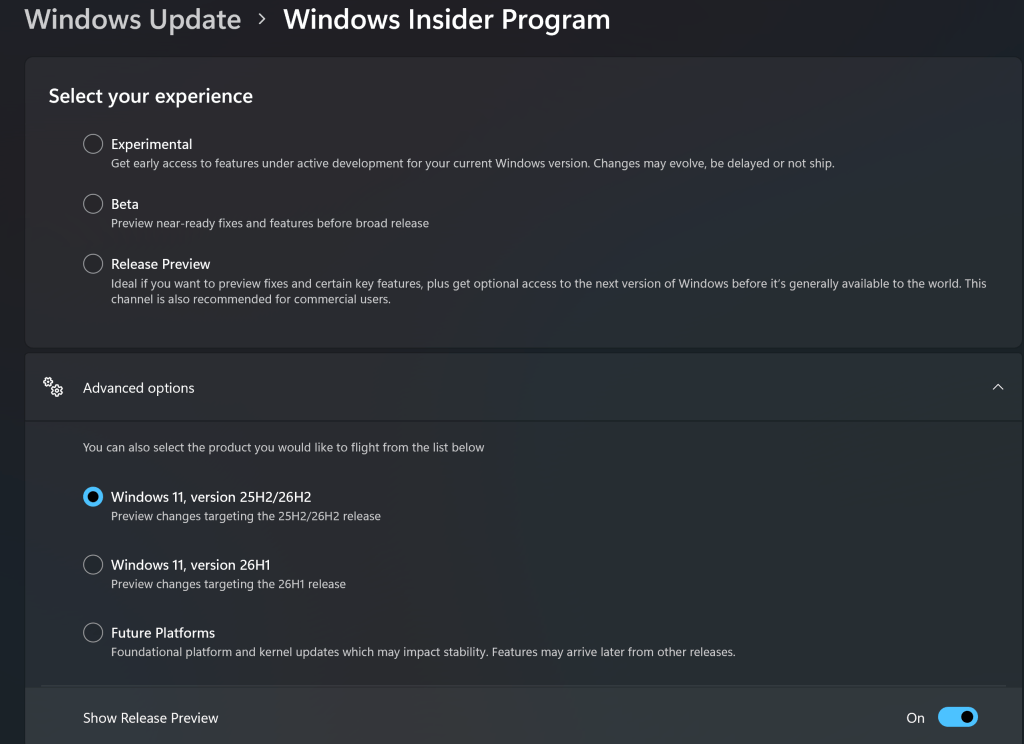
Choosing a channel and version for receiving Insider updates.
Preston Gralla / Foundry
Once you’ve chosen a channel, make sure you’re choosing updates for the right version of Windows 11. To do it, click the down arrow next to “Advanced options” and choose a version. These are the options available as I’m writing this, which will change as new versions of Windows roll out:
- Windows 11, version 25H2/26H2: This option covers Windows 11 25H2, the standard version of Windows 11 that most people have now, and its successor, Windows 11 26H2, which is beginning to roll out now. This is the selection that most people will likely make.
- Windows 11, version 26H1: This is a separate branch of Windows 11 from the mainstream 25H2/26H2. It’s only for people who have PCs with Qualcomm Snapdragon X2 Series processors purchased in 2026. People with 25H2 or 26H2 can’t switch to version 26H1, because their hardware won’t support it. Those with 26H1 can’t switch to 25H2 or 26H2.
- Future Platforms: This option is available for Windows 11 25H2/26H2 and 26H1, but only if you’re in the Experimental channel. Aimed solely at developers and extremely sophisticated technical users, it’s the bleeding edge of Windows and can be highly unstable. Microsoft notes, “This build core version is aimed at highly technical users who want to preview platform changes that require a longer lead time before release. Examples include major changes to the Windows kernel and new APIs. The builds released to Future Platforms represent platform changes early in the development cycle and should not be seen as connected to any specific retail release of Windows.”
If you choose one of the latter two options, you’ll be placed in a specialized channel. For example, choosing Experimental and the standard Windows 11 version (currently 25H2/26H2) puts you in the main Experimental channel, but choosing Experimental and Future Platforms puts you in a channel called Experimental (Future Platforms).
What was that about making the channel system less confusing, Microsoft?
Test builds, provide feedback
Whichever channel you choose, you’ll begin receiving updates for that channel in Windows Update. Each build is documented with release notes in the Insider Flight Hub. Microsoft’s Windows Insider Blog typically announces each batch of new builds as they roll out, with direct links to the release notes for each channel’s latest build.
You’ll be invited to provide feedback on the preview builds you test via Microsoft’s Feedback Hub. For details, see Microsoft’s “Deeper look at feedback” info page.
A word about features in the Experimental channel
Perhaps the biggest source of confusion about Insider builds has been that you might not see all the features discussed in the documentation for a given build. That’s because Microsoft rolls some features out to different users gradually — a process it calls controlled feature rollouts (CFRs).
The idea is to test the features on a subset of devices that the system deems best able to handle them, monitor them to see how they perform, tweak them if needed, and eventually deliver them to everyone in the channel. This technique makes sense from Microsoft’s perspective, but it’s confusing and frustrating for Insiders who don’t know when they’ll get a feature that’s been announced.
The good news is that Microsoft no longer uses CFRs in the Beta channel. If you’re in the Beta channel, you’ll have access to all the features mentioned in the release notes for a build.
The Experimental channel, though, still uses CFRs. There is one possible workaround: you may be able to turn these delayed features on manually using a setting called feature flags. Feature flags also provide a way to turn off some experimental features that you don’t want to test. Here’s how it works.
Before installing a new Experimental channel update, go to Settings > Windows Update > Windows Insider Program > Feature flags. You’ll see a list of features that you can turn on or off. (By default, new features are turned on in the Experimental channel, except if they’re under controlled feature rollout.) You can use the available flags to manually turn the features on and off, “even if CFR is being used to gradually roll out that feature,” Microsoft says.
Turning new features off in the Experimental channel.
Microsoft
Note that feature flags are not available for all of a build’s features — only those that Microsoft allows. Bug fixes and overall system improvements, for instance, often don’t have feature flags that you can turn off or on.
If you turn a feature on or off, you can later change it back from the same page.
Switching between Insider channels
To a limited extent, you can switch from one Insider channel to another. You can only switch between channels for your specific Windows version — as I write this, either Windows 11 25H2/26H2 or 26H1. You also can’t switch in and out of the Experimental (Future Platforms) channel.
So you can go directly from the Release Preview channel to the Beta or Experimental channel, for instance, or from the Beta (26H1) channel to Experimental (26H1) or Release Preview (26H1). To do it:
- Go to Settings > Windows Update > Windows Insider Program.
- Select Choose your Insider settings.
- Choose the button next to the channel to which you’d like to switch. You’ll get the update for your new channel the next time one is ready.
You can’t move directly out of the Experimental channel to another channel. If you want to switch to another channel if you’re in Experimental, you’ll first have to wipe your PC, then re-install Windows, and then enroll in another channel.
IT administrators: Joining Insider and choosing the right channel
IT administrators need to know what changes are being made to Windows before they happen so they can prepare to support them. To help them, Microsoft offers a separate Windows Insider Program for Business, which has additional features and tools geared toward enterprise needs. Admins can choose to install Insider preview builds on individual PCs or virtual machines for testing, or they can centrally manage Insider builds on multiple devices across an organization using a variety of management tools.
To get started, head to the Windows Insider Program for Business page, click Register, and follow the instructions. Microsoft’s “Start running Windows Insider Preview Builds as a business” documentation page walks you through how to set up individual PCs or virtual machines to test Insider builds, and “Manage Insider Preview builds across your organization” provides in-depth information on registering your Entra ID domain and managing test devices through Group Policy, Intune, and other management tools.
When it comes to choosing Insider channels for test devices, IT has the same options as individuals. For more details about each, see the channel descriptions in the previous section of this article. However, there are a few additional things IT admins need to know about each channel:
- Experimental channel: This may not be the best channel for IT administrators to use, and not just because it’s the buggiest. Microsoft introduces features and settings in this channel that it eventually discards, which means that IT admins will be wasting their time checking out and preparing for features they’ll never use.
- Beta channel: This channel may be the best choice for IT admins. Not only does it tend to be fairly stable, but by the time a feature reaches the Beta channel, it is intended for the next Windows release, not some nebulous future date. Choosing this channel, admins can get a heads up about what’s coming in Windows in the near future without wasting their time testing capabilities that may never make it into the operating system. And they will also have the most influence over the direction of Windows, because they’ll be commenting on features or bugs at a time when they can be changed or fixed.
- Release Preview channel: This is the most conservative choice for IT. It’s the most stable version, and what’s here ends up in the next Windows update. IT professionals can use the Release Preview channel to make sure their applications and infrastructure will be ready for new Windows updates when they ship. Go to Microsoft’s “Validate upcoming releases in the Release Preview Channel” documentation for details.
One last resource admins should know about is the Windows Insider Program Tech Community forum, where IT pros from around the world post feedback, share tips, and discuss problems and workarounds for the Insider builds they’re testing.
This story was originally published in September 2017 and most recently updated in October 2026.
Read more: How to navigate the Windows Insider Program