8 advanced ways Vivaldi boosts your productivity
Switching browsers is almost akin to switching to a new operating system — or, for a more physical analogy, moving into a completely new office where everything’s unfamiliar.
Most of us spend so much time in our browsers and handle so much work in that environment that in many ways, the browser essentially is the desktop these days. It’s arguably even more consequential than the operating system beneath it (or the physical office around it), given how much of our workdays — and beyond — end up revolving around that area.
It’s probably no surprise, then, that most of us don’t change browsers all that often. Unless your primary portal to the web is leaving you unsatisfied in a seriously striking way, it’s easier just to stick with what you know than to take the time to explore and adapt to some daunting new alternative.
As someone who’s been stuck in that rut for the better part of two decades, though, lemme tell ya: If you haven’t explored your browser options lately, you’re missing out on some incredibly interesting and advantageous productivity upgrades.
I’ve recently made a switch from Chrome to a newer, more off-the-beaten-path contender called Vivaldi. At a time when most mainstream browsers are focused on cramming AI features of questionable usefulness (and even more questionable consequences) into every nook and cranny, Vivaldi is actively making a point to avoid that and instead come up with a steady stream of clever interface enhancements that actually help you get stuff accomplished more efficiently (and without the very real risk of hallucination-induced embarrassment).
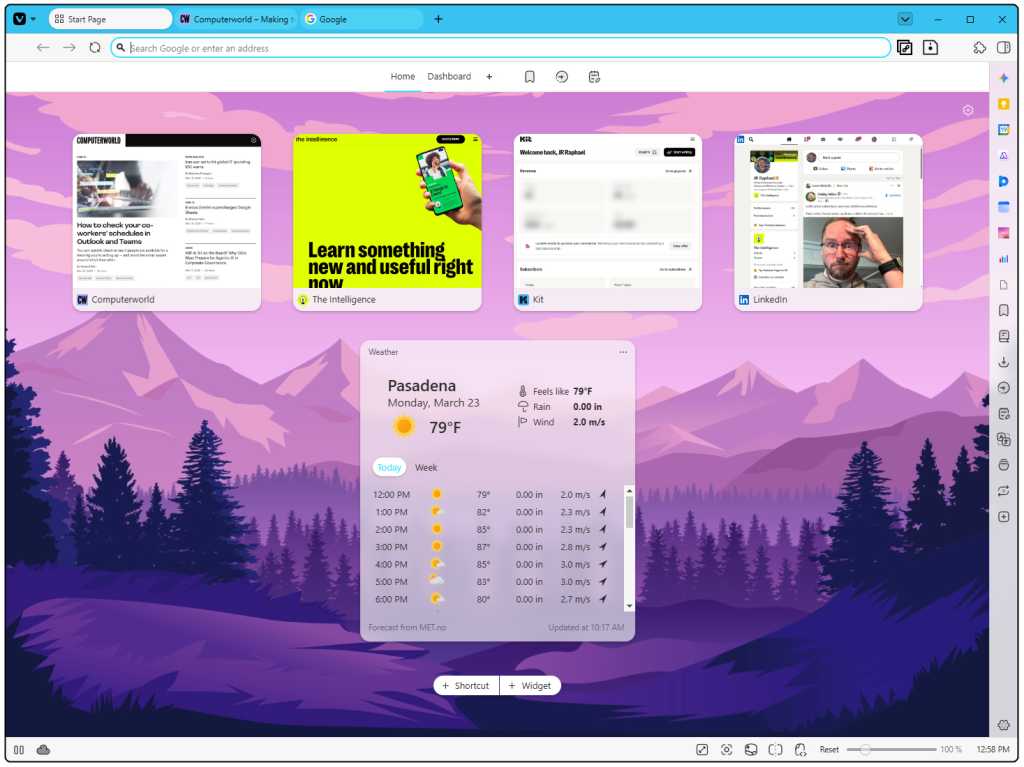
The Vivaldi browser is both fresh and familiar — with some truly interesting touches.
JR Raphael
Let me show you some of the specific Vivaldi advances that won me over.
First, a few foundational notes
Before we dive into my favorite Vivaldi features, we need to get a few quick basics out of the way.
First and foremost: Vivaldi is available to download for Windows, Mac, or Linux, on the desktop front, and also for both Android and iOS on mobile. Vivaldi’s mobile experience is quite nice, and I’d actually been using the Vivaldi Android app as my primary browser for several months before making the leap on the desktop side — but since the desktop is inevitably where the more powerful and ambitious features come into play, it’s where we’ll devote our attention in this overview.
Second: It’s free. No cost, no catches.
As for how Vivaldi manages to maintain a completely free offering — always an important question to consider — the company behind the browser says it makes its money via a combination of partner deals (with services like search engines and bookmark organizers), partnerships with websites that Vivaldi highlights in certain areas of its interface, and completely optional one-off or recurring donations from its users.
Third, and perhaps most notably: None of that involves any manner of tracking, profile, or personal data sharing — quite the contrary, in fact, as we’ll explore more in a moment — and none of it has any lasting effect on your browser experience if you choose to disable or delete the associated elements.
Got it? Good. Now, let’s get into the good stuff.
Vivaldi advantage #1: Shortcuts galore
The best part about using Vivaldi, for me, has been the immense system of step-saving shortcuts it adds into your day-to-day browsing adventures.
At the simplest level, that includes a Quick Commands menu that lets you perform practically any browser function — switching tabs, finding bookmarks, searching the web and/or your history, opening specific URLs, and so much more — simply by pressing Ctrl (or ⌘) and E and then either typing your query or typing a couple characters to find the command you want.
So, for instance, you might hit Ctrl-E and then type ex and hit Enter to open the Vivaldi Extensions page — or hit Ctrl-E and type pi to find the option for pinning and unpinning a tab.
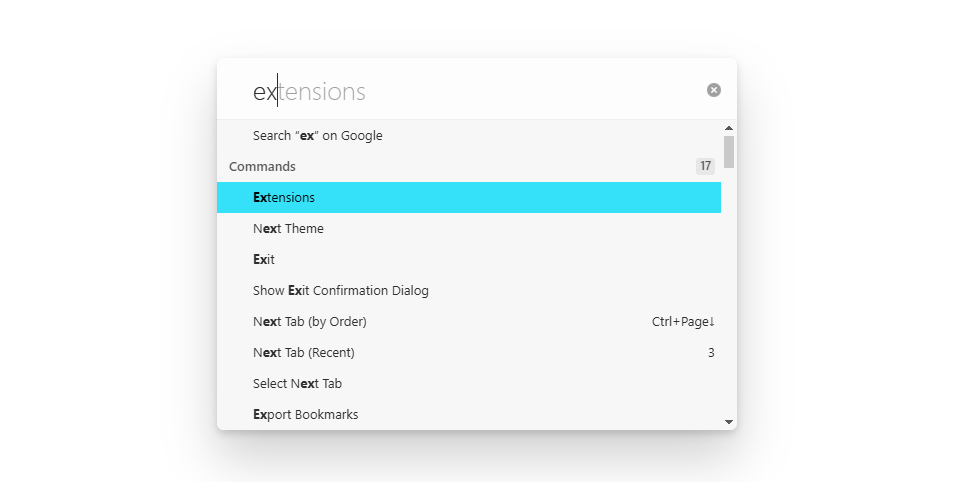
Vivaldi’s Quick Commands menu is your key to next-level web work efficiency.
JR Raphael
And that’s barely scratching the surface of what’s available in this interface. Other potentially useful commands that are never more than a couple characters away include:
- Capturing a screenshot
- Moving a tab to a new window
- Renaming your current tab
- Closing all the tabs to the right of your current tab
- Copying the current page address
- Hiding all images in whatever page you’re viewing
- Muting or unmuting your current tab
- Translating the page you’re seeing
- And moving in and out of a clutter-free reading mode
The list of options is absolutely massive, and you can even customize it and change the order in which different types of commands are prioritized so that it takes fewer characters to find what you need.
Once you start to learn the commands that are most relevant to you, you’ll be flying around your browser — and your work day — like never before.
Vivaldi advantage #2: Command Chains
What’s without a doubt the most powerful part of that Quick Command system we just went over is the ability Vivaldi gives you to create your own custom “Command Chains” — sequences of browser-based actions that you cluster together and can then trigger with a chosen command from that same Quick Command menu.
It’s a tough concept to explain succinctly, but once you wrap your head around some specific examples, you’ll see what it’s all about — and understand why I’ve been so excited to embrace it.
So, first: Like many keyboard-caressing creatures, I have a handful of specific workflows I find myself facing repeatedly throughout my weeks. One such example is writing my Android Intelligence newsletter, which always starts out with my opening a particular page within my newsletter sending service, opening the “Newsletter Outline” Google Doc that I use to plan and organize each issue, opening the Trello board that I use to collect interesting ideas and articles for potential inclusion, and opening the RSS feed reader that I rely on to follow a slew of subject-specific news sources.
Traditionally, with Chrome, that’s meant I open one tab after another and manually navigate to each of those websites every time I’m ready to work on the newsletter. Now, with Vivaldi, I just hit Ctrl-E and then type AI to open all the sites together as a part of a custom Command Chain I created for that purpose.
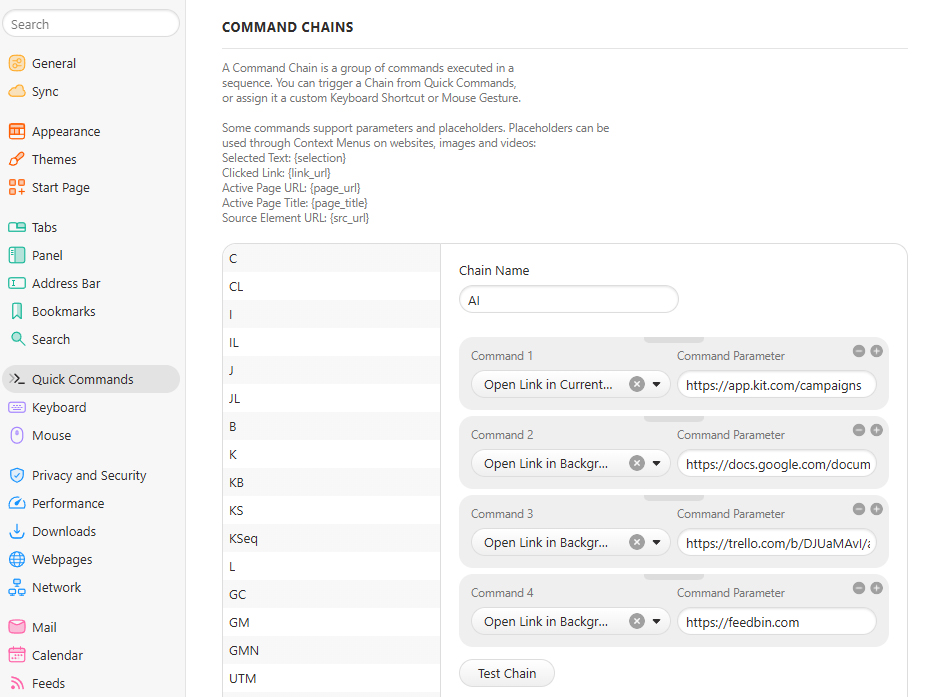
My “AI” Vivaldi Command Chain is configured to open a series of specific websites together within a single window.
JR Raphael
I’ve got similar sorts of Command Chains for every other common workflow, and even ones that provide quick ways to open individual web pages I find myself pulling up often. But effective as those are, they’re relatively simple examples of what a Command Chain can accomplish.
In addition to opening specific web pages, Command Chains can perform practically any browser function imaginable — switching tabs, closing or moving tabs, reloading tabs, entering or exiting a full-screen viewing mode, deleting your browsing data, capturing screenshots of entire pages or specific areas within a page, you name it. You can even build in custom delays within your sequences, if you need to have a brief pause between two particular actions you’re performing.
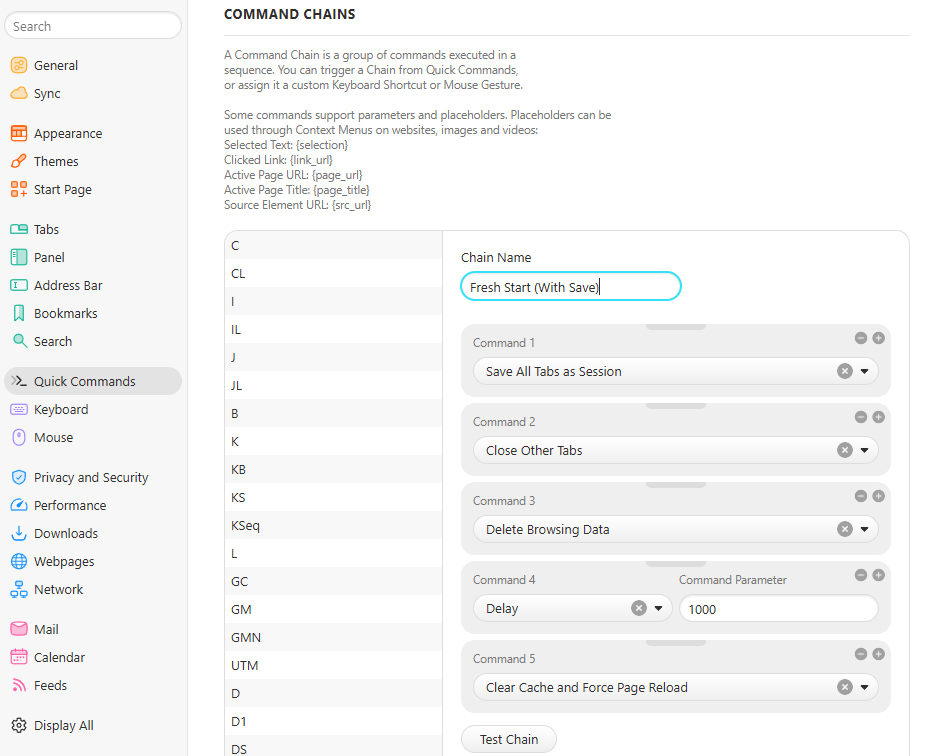
Command Chains can perform all sorts of browser actions to accomplish any kind of goal.
JR Raphael
It’s essentially a custom automation system within your browser, in other words, and a way to reduce almost anything you find yourself doing often down to a couple quick keystrokes.
Or, if you’d rather…
Vivaldi advantage #3: Mouse gestures
Maybe you’re more of a mouse person than a keyboard warrior. If so, Vivaldi has a really interesting system of mouse gestures that can save you some serious time.
You trigger the gestures by either holding down your right mouse button or holding down your Alt key and then moving your mouse in a specific path — in a line straight downward to open a new tab, for instance, or in an “L” shape to close your current tab.
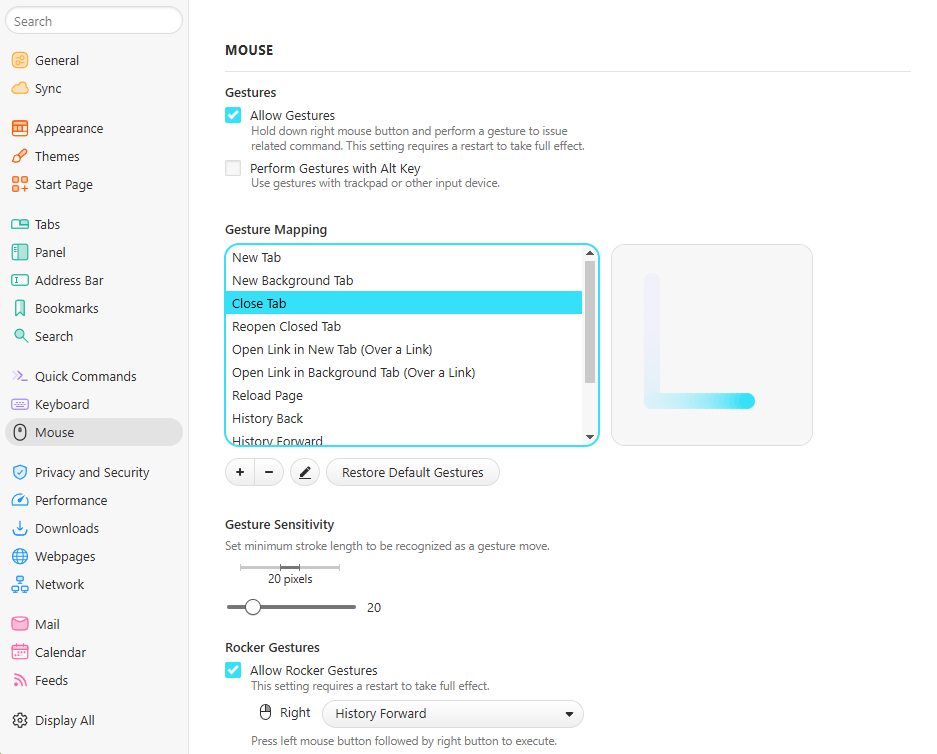
Vivaldi’s mouse gestures are an interesting extra shortcut option.
JR Raphael
Vivaldi has a whole host of those sorts of actions active and available out of the box, but the real power comes into play when you start to expand and customize those commands. You can create any mouse gesture you like for any of the basics, and you can add in your own new mouse gestures for any standard browser action as well as for any Command Chain you’ve created.
And if that still isn’t enough…
Vivaldi advantage #4: Custom keyboard commands
All Command Chain craziness aside, Vivaldi has a sprawling set of single-step keyboard shortcuts also available for browser-level actions. And unlike Chrome and other more traditional browsers, it offers you the option to both change any standard shortcut to anything else you’d like and to add in new shortcuts for browser actions you use frequently and want an easier way to access.
So, for instance, you might set it up so that Ctrl-X opens the Vivaldi Extensions page or Ctrl-Alt-S captures a screenshot and saves it to your system clipboard. The list of possibilities is positively mind-blowing, and it’s all about making your browser work the way that’s best for you.
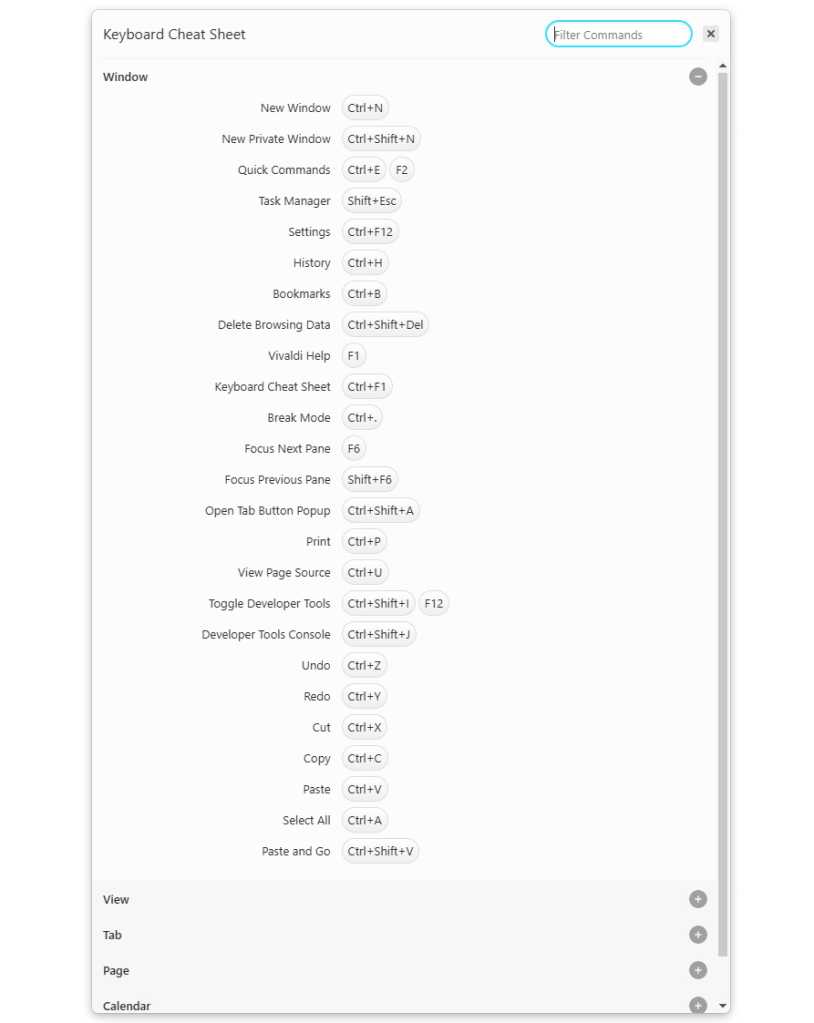
Vivaldi’s list of keyboard shortcuts is staggering — and completely customizable.
JR Raphael
As an added bonus tip, take note that you can always use the built-in keyboard shortcut of Ctrl-F1 to view all of your current keyboard shortcuts — and, of course, you can also change that shortcut to something else, if you’d rather.
Vivaldi advantage #5: Web Panels
Another feature that’s been an immediate highlight for me is Vivaldi’s Web Panels. These are almost like small web-based widgets that you keep in a panel to the right of your browser and can then call up quickly anytime to view and interact with alongside any other page you’re viewing.
That’s perfect for the type of tool you’re typically accessing as a supplement to something else — like your notes, your calendar, a timer, a thesaurus, maybe even an LLM like Gemini or ChatGPT.
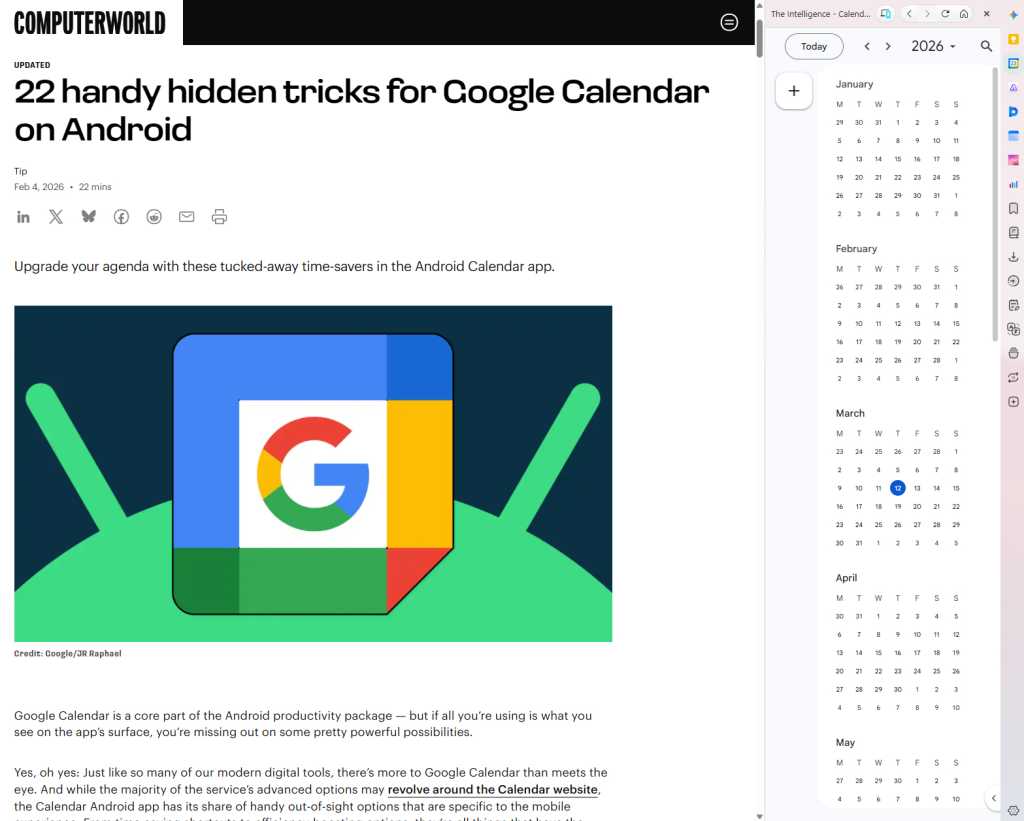
Web Panels are like on-demand widgets at the side of your browser.
JR Raphael
Whatever the case may be, all you’ve gotta do is add the site in as a Vivaldi Web Panel, and it’ll always be available to pop up with a single click on that sidebar.
And — for the real magical moment of all these pieces coming together — you can also create a custom keyboard shortcut for any of your Web Panels and then summon it without ever taking your fingers off your keyboard.
Whew! Anyone else workin’ up a bit of a sweat here?
Vivaldi advantage #6: Tab Tiling
Chrome recently added in the option to start up a split view and see any two web pages together, side by side, within a single tab in your desktop browser.
I thought that was pretty crafty and surprisingly useful. And then I saw Vivaldi’s vastly superior version.
Tab Tiling is like Chrome’s split view on steroids. It lets you bring multiple web pages together into a single tab, in all sorts of different configurations, simply by dragging and dropping ’em wherever you want — or, alternatively, right-clicking on a link and choosing to open it as a tiled tab from there.
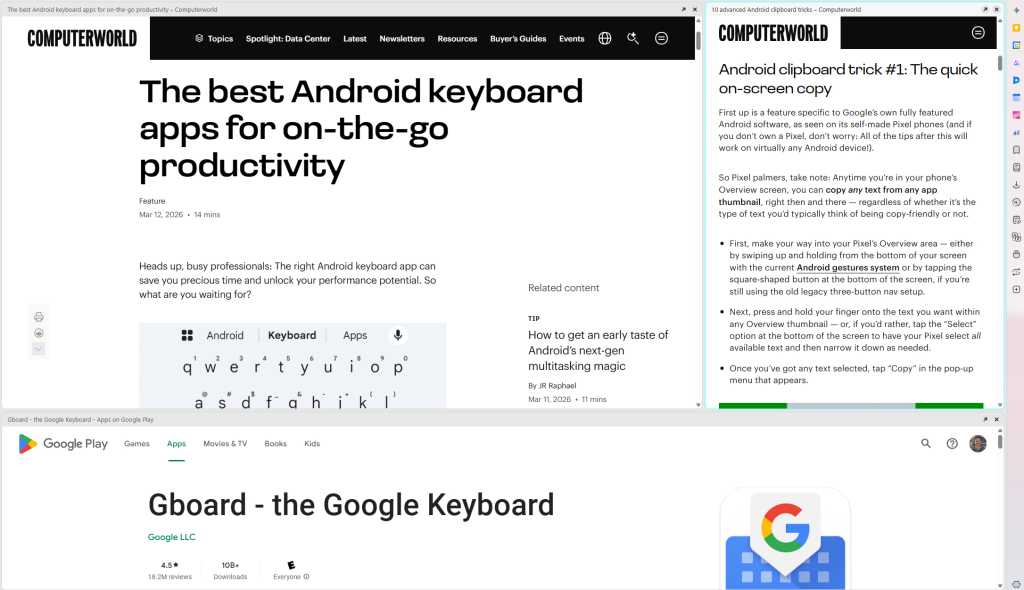
Tab Tiling creates a whole new way to work on the web.
JR Raphael
It’s the kind of creative versatility the browser world has been missing for far too long and the type of productivity advantage you won’t want to give up once you get in the habit of having it.
Vivaldi advantage #7: Privacy, privacy, everywhere
Aside from all the surface-level practical advantages, Vivaldi excels in an area that’s increasingly important to lots of professionals these days — and that’s privacy.
Specifically:
- The browser includes built-in access to the Proton VPN service, which you can enable or disable anytime with a quick click. It’s completely free to use, too, without any limits (and with the option to upgrade to Proton’s paid premium plan for a variety of extras, if you want).
- It includes a native ad and tracker blocking system that’s off by default and can be enabled either web-wide or on a case-by-case basis.
- And it has a location override setting that makes it simple to protect your actual geographic location by choosing any other location, which websites will then be shown when they try to sense your whereabouts.
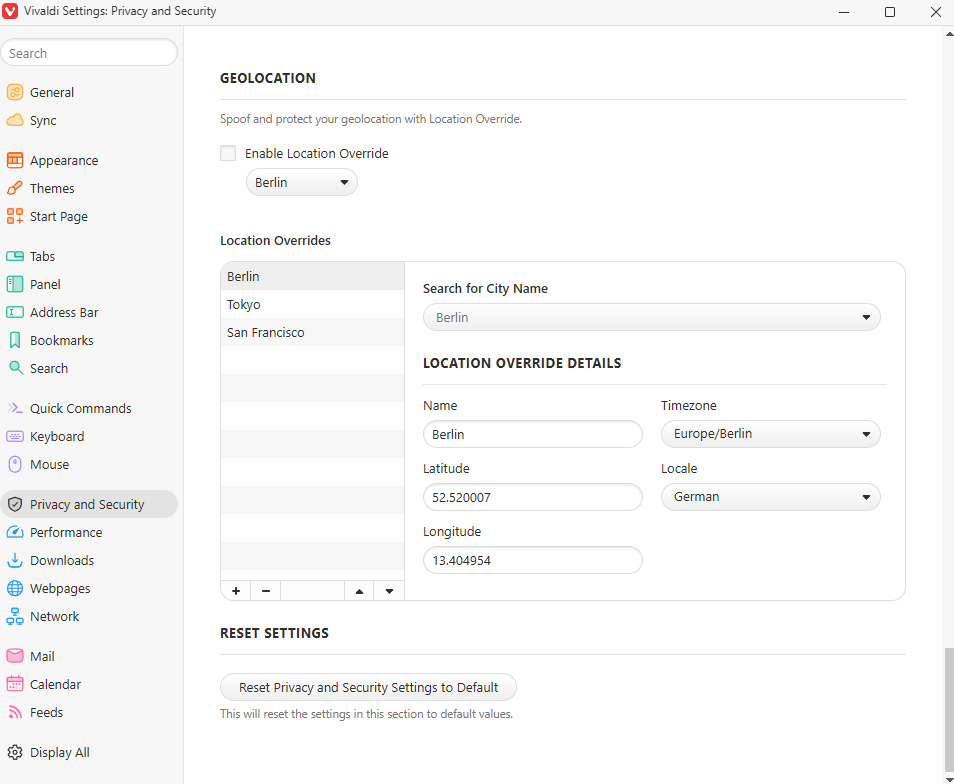
Being able to override your perceived location right within your browser is a pretty powerful advantage.
JR Raphael
The best part about all of these features is the way they’re implemented and the choice that approach affords you. You can decide where, when, and how you want to use any of them. Nothing is forced on you or enabled by default.
And on that note, last but not least…
Vivaldi advantage #8: Extreme customization
In addition to all the specific standouts we’ve gone over, what’s refreshing about Vivaldi is how much control it gives you over practically every facet of your browser experience — something that is not the case with Chrome or other more traditional browsers.
Every interface detail you can think of can be customized and changed within Vivaldi’s settings, ranging from the appearance of the address bar to the specific contents and layout of the menus.
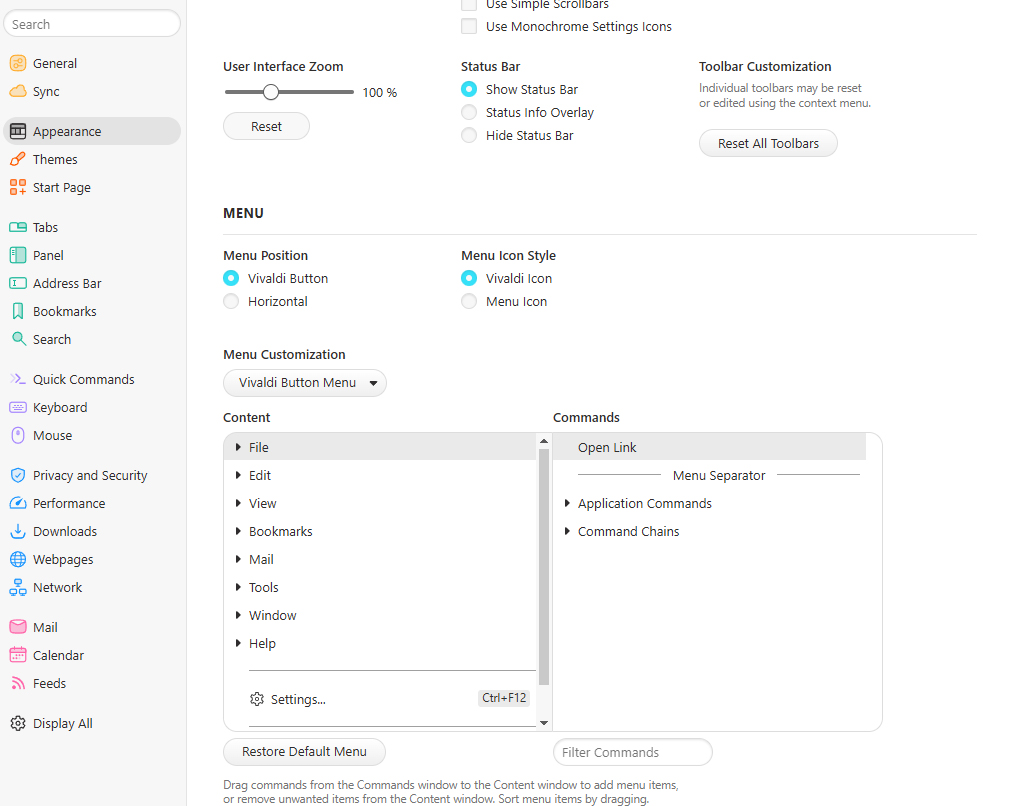
Vivaldi lets you control even the tiniest of details about your browsing experience — if you’re so inclined.
JR Raphael
If there’s some element of your browser you don’t like or you think should work differently, odds are, Vivaldi will let you adjust it to your exact specifications.
More than anything, remember: Adapting to a new browser isn’t easy. Take the time to get familiar with Vivaldi’s interface and features, though, and you might just find yourself delighted by your new virtual office, as I’ve been, rather than just quietly accepting the way you’ve always known it.
Read more: 8 advanced ways Vivaldi boosts your productivity