Your guide to Google Messages’ new hidden gestures
One of the most rewarding parts of being a Certified Android Explorer™ is the geeky pleasure that comes with uncovering a hidden shortcut Google snuck somewhere into its smartphone software.
One of the most exhausting parts, in contrast, is realizing that Google randomly changed a bunch of the shortcuts you’d found and developed the muscle memory to remember.
Here in the land o’ Googley matters, both of those things are constant realities and balancing forces. In fact, we’re watching that exact duality play out in the Google Messages app for Android right now.
Google Messages has so many tucked-away options and power-user shortcuts that most mere mortals never notice — or just don’t remember to use. And now, sure enough, Google’s in the midst of rolling out an update that changes the way many of ’em work.
Maybe you’ve noticed. Maybe you had no idea those invisible gestures were even there in the first place. Either way, now’s the time to learn or relearn the best ways to get around Google Messages on Android and take full advantage of its recently revamped invisible actions.
Here’s your guide to all the hidden swipes, taps, and presses and how they can help you communicate more efficiently than ever.
[Don’t stop here: Come check out my free Android Intelligence newsletter for something new and useful in your inbox every Friday — and my Android Notification Power-Pack as a special welcome bonus!]
Google Messages gesture #1: The message long-press
We’ll start within the actual Google Messages chat experience — what you see once you’re looking within a specific conversation or texting thread on whatever Android device you’re using — ’cause that’s where the biggest and most jarring gesture changes are appearing.
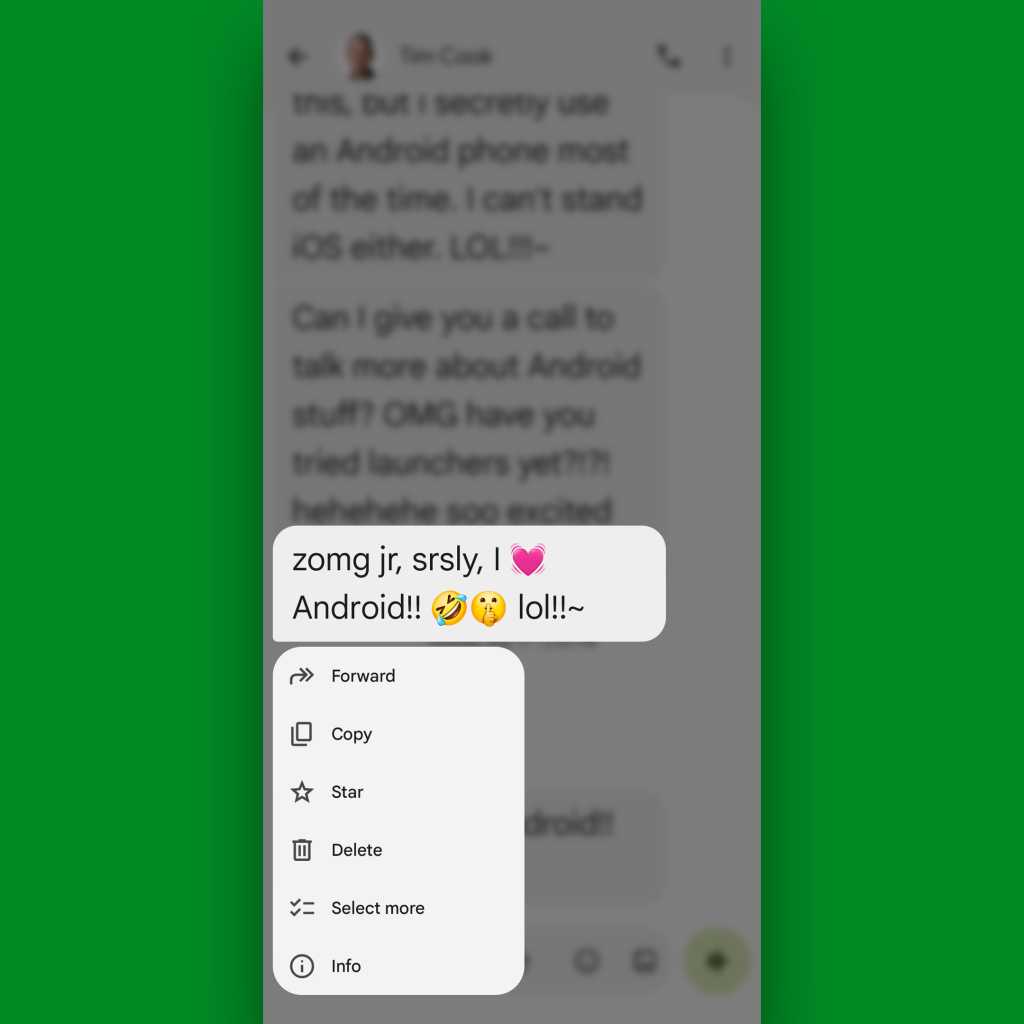
First and foremost, if you press and hold your finger down onto any individual message within a thread, you’ll now see a new pop-up menu filled with possibilities for interacting with that message — with regular and custom photo-based reactions at the top, when the thread supports those, and then a variety of available actions in a menu beneath that.
JR Raphael, Foundry
Of note, the new “Select more” option within that menu will allow you to select multiple messages within a thread for copying, forwarding, or deleting; the new “Copy” option is an easy way to copy the contents of that one message onto your Android system clipboard; and the newly positioned “Info” option is an interesting way to see more about the message’s status — including if and how the message has been edited after its original delivery.
Speaking of editing, if you’ve sent a message recently enough and it’s in a thread where editing is supported, you’ll also see the option to edit a message of your own in that same new long-press pop-up.
And all of that’s just scratching the surface.
Google Messages gesture #2: The message right swipe
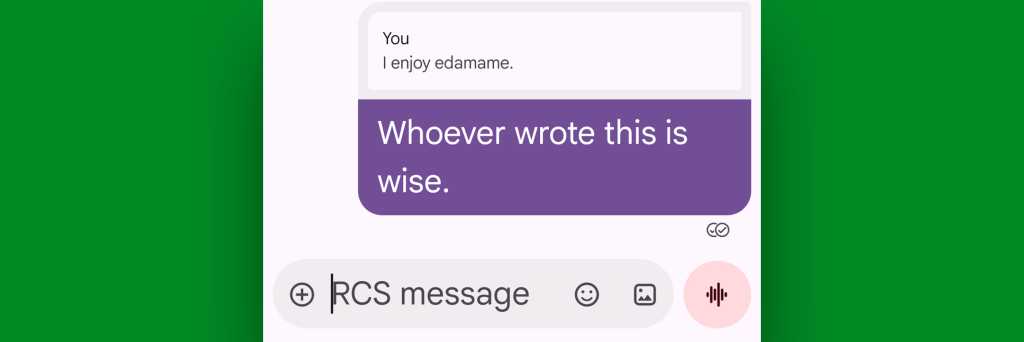
Still within the Google Messages conversation interface, try placing your finger onto any individual message and swiping it toward the right of the screen.
In a conversation where everyone’s using a device that supports modern messaging standards, that’ll reveal an artfully hidden shortcut to reply directly to that specific text — which essentially quotes and repeats the original message above whatever you write for context.
JR Raphael, Foundry
It’s a handy way to keep track of what’s happening in a conversation, especially if numerous things are being discussed at once or you’re replying to something from a while back.
Google Messages gesture #3: The message left swipe
Another change in the Android Messages gestures is what happens when you swipe the other way — toward the left — on any individual message.
That gesture now reveals the timestamp showing exactly when the message in question was received — a pertinent sliver of info that used to be readily available and visible by default but now gets tucked away out of sight unless you perform that subtle swipe to reveal it.
Google Messages gesture #4: The message tap
Speaking of newly hidden info, try tapping on any message that you’ve sent within a conversation.
In a thread where everyone is using the current RCS messaging standard, that’ll reveal the status markers that show if your message was delivered and also if it’s been read.
Google Messages gesture #5: The profile photo tap
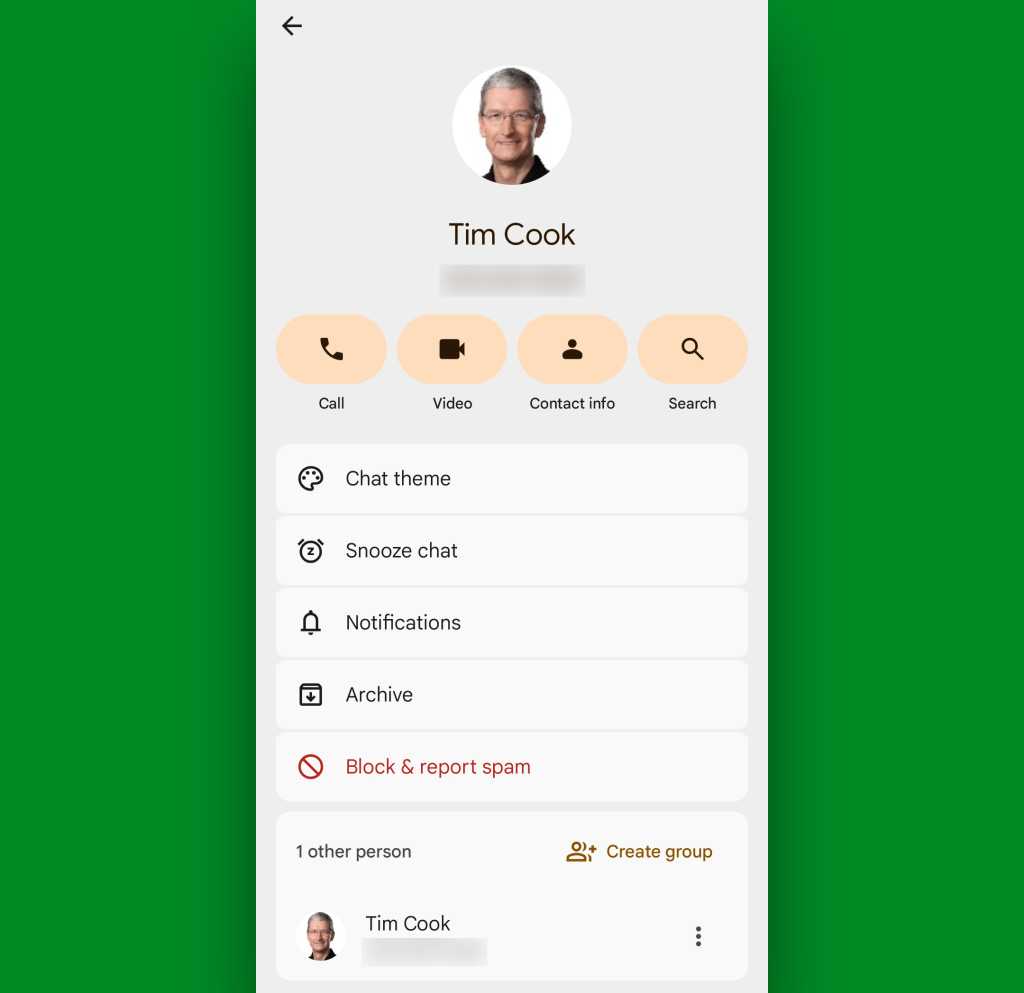
Next up, tap the profile picture or pictures at the tippity-top of any individual thread you’re viewing.
That’ll take you to an info screen about the conversation, where you can adjust a variety of settings as well as see more info about all of the other people in the chat and add any or all of ’em into your Android contacts, too.
JR Raphael, Foundry
On a related note…
Google Messages gesture #6: The group chat name tap
In a conversation where multiple people are involved, you can tap the name of any individual person above a message they’ve sent to summon a pop-up panel related to them, specifically.
From there, it’s just one more tap to call or message that person directly or view their contact info and add ’em into your contacts, if they aren’t already present.
Google Messages gesture #7: The send long-press
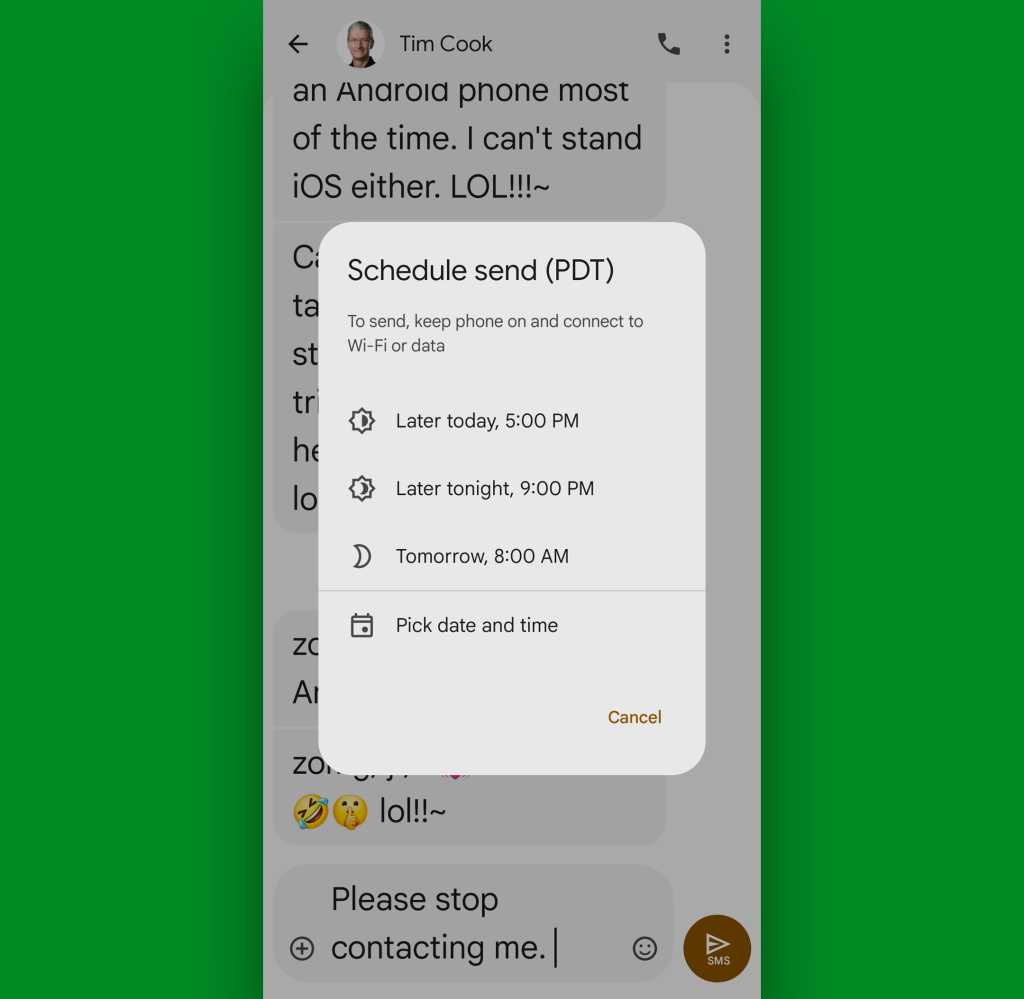
After you’ve typed a message in any thread, press and hold the send button (at the right of the text composing window) instead of just tapping it.
JR Raphael, Foundry
That’ll give you the option to schedule the message to be sent at some future date and time. Just note that your phone will need to be on and with an active connection when that time comes in order for the delivery to happen.
Google Messages gesture #8: The message list swipe
All right — time to head out to your main list of messages for a few final gestures to relearn and remember.
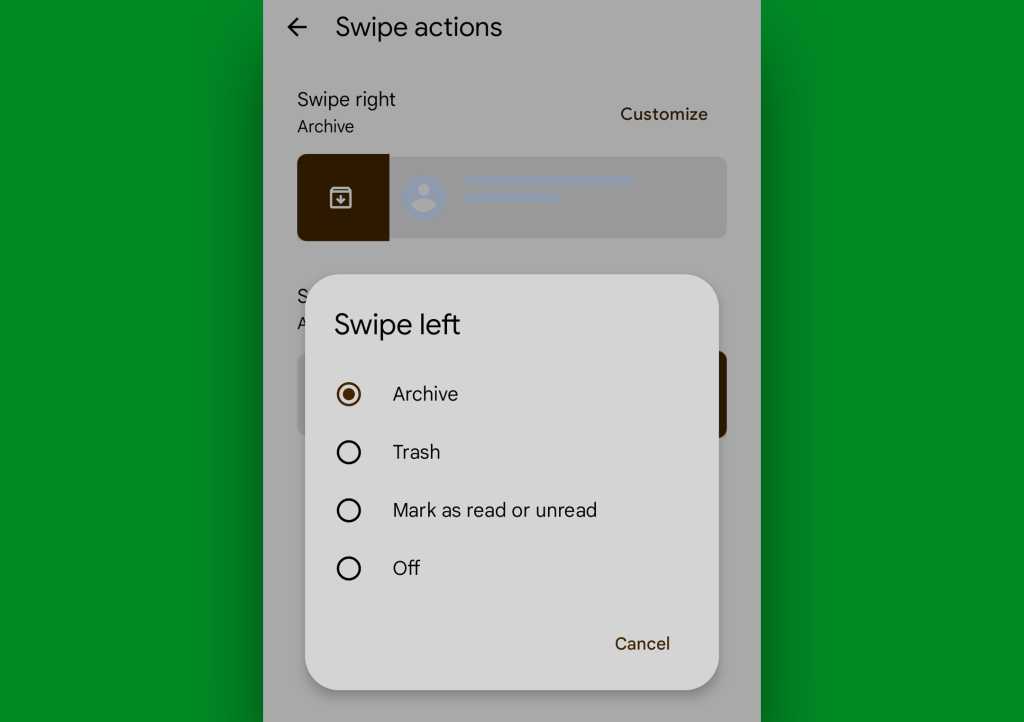
First, you can swipe left or right on any thread in that list of conversations to perform an action of your choosing on it — like archiving it, deleting it, or marking it as unread.
To set those gestures up the way that’s most useful for you, tap your profile picture in the upper-right corner of the screen, select “Messages settings,” then tap “Swipe actions” and review the available options.
JR Raphael, Foundry
Google Messages gesture #9: The message list long-press
Next, did you know you can press and hold any message in the main Google Messages list to select it?
Once you’ve done that, you’ll see a new set of options appear in the bar at the top of the screen to pin the message for easy ongoing access, to snooze the message and stop receiving notifications related to it for a set amount of time, and to archive or delete it as well as to mark it as unread or block its sender entirely (with those last two options being buried in the three-dot menu icon in the corner of the screen).

JR Raphael, Foundry
Google Messages gesture #10: The sender pic tap
Last but not least, tap the profile picture next to any thread in your main Messages list, and you’ll find a pop-up menu of actions related to that specific person or all the people within a group chat.
It’s a fast and convenient way to start a new text, place a call, or hop over into the Contacts profile for the person in question — provided they’re already saved in your phone’s contacts.
JR Raphael, Foundry
And now you know, my fellow Certified Android Explorer™. All that’s left is to remember all these time-saving Android Messages gestures — then brace yourself for the inevitable next time Google changes ’em around again.
Keep the Googley goodies coming with my free Android Intelligence newsletter — one new thing to try every Friday and my Android Notification Power-Pack as an instant welcome bonus.
Read more: Your guide to Google Messages’ new hidden gestures